Staff App

Staff App to view and manage orders

Everything in one place: receiving orders, calling a courier, scheduled orders and status updates guests can follow.
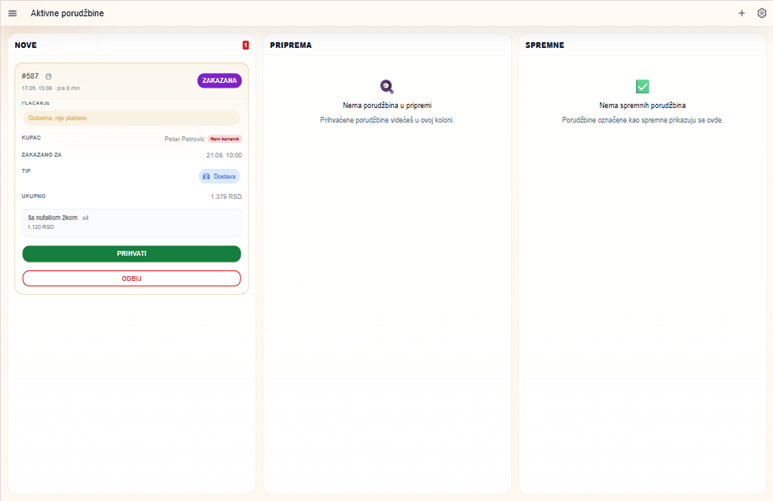
Staff App desktop view with columns for new, preparing and ready orders
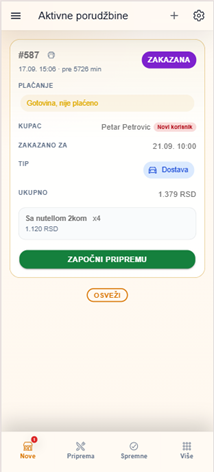
Scheduled order in the Staff App mobile view
Scheduled orders
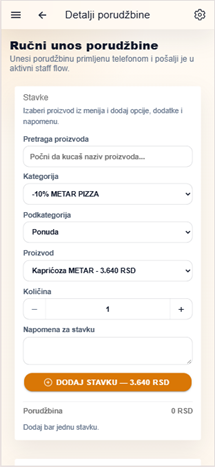
Manual order entry in the Staff App mobile view
Manual entry

Everything for a busy shift

Tools for efficient order handling

From receiving an order to delivery, your team can see what needs to happen next.

Receive orders

New orders from your direct channel arrive in one place.

Preparation

Statuses show what is new, in progress and ready.

Delivery and pickup

Separate delivery from pickup and follow each order through its journey.

Order history

Quick and easy access to previous orders.

Scheduled orders

Receive orders outside business hours, with a configurable reminder.

Menu management

Enable or disable categories, products and add-ons.

From order to completion

Guest app – the complete order flow

Your team updates the status in Staff App while guests can follow every stage of their order.

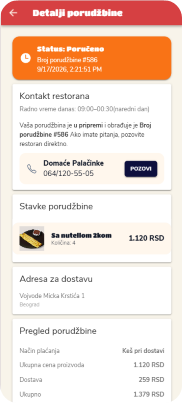
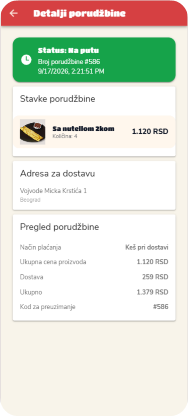
  1. Guest app showing the Ordered status
    1

    Ordered

    The order reaches the restaurant and the guest sees it was received.

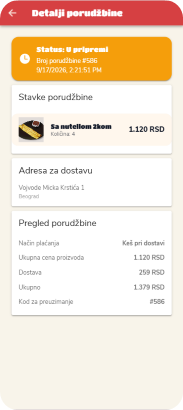
  2. Guest app showing the Preparing status
    2

    Preparing

    The team accepts the order and starts preparing it.

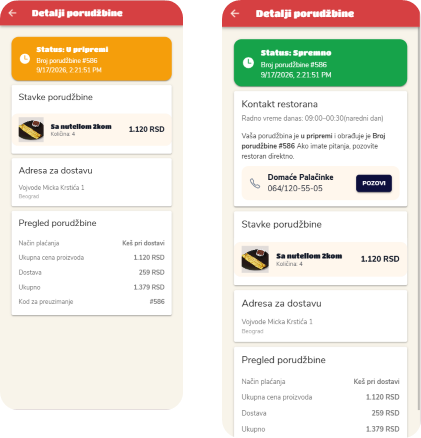
  3. Guest app showing the Ready status
    3

    Ready

    The order is ready for pickup or a courier.

  4. Guest app showing the On the way status
    4

    On the way

    Guests can see when the courier is on the way.

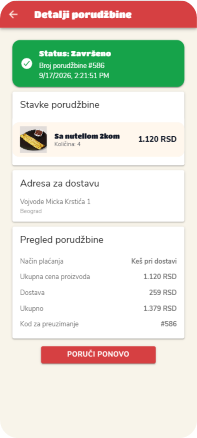
  5. Guest app showing a completed order
    5

    Completed

    The order is delivered and remains in the customer's history.

Included with the 2% to 5% packages The Staff App is part of every direct-ordering package.

Book a demo View packages

FREQUENTLY ASKED QUESTIONS

Questions? We have answers.

What information comes with an order?

Staff can see the order number and time, the customer’s name, the pickup or delivery method, the payment method and status, and the total amount. The ordered products, quantities and any changes selected by the customer are also shown, such as extras or ingredients they would like left out.

How do staff change an order’s status?

A new order appears in the “New” column, where staff can accept or reject it. Once accepted, it moves to the “Preparing” column. When preparation is complete, staff click “Mark as ready” and the order moves to the “Ready” column.

Is the staff app included in the package?

Yes. The staff app is included in every Progrest package.

How are staff notified of a new order?

An audible notification sounds when a new order arrives.

Which devices can staff use to receive orders?

You can receive orders on a phone, tablet or computer. You can open the Staff panel in a web browser, and on a phone or tablet you can also use the mobile staff app.

Can staff temporarily mark a product as unavailable?

Yes. If a product sells out during a shift, staff can mark it as unavailable directly in the Staff panel. You can also change product availability in the Admin Panel.

View all questions